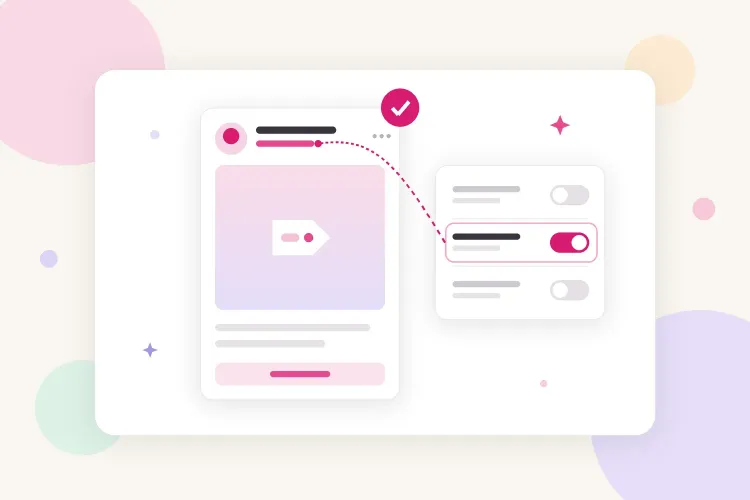


To add a paid partnership on Instagram, first turn on branded content tools in your Creator or Business account settings. Then, on the last screen before sharing a post or Reel, tap More options, switch on Add paid partnership label and tag up to two brands. Stories use the tag icon at the top of the editor, Lives use Details, and posts already live can be updated from the post menu.
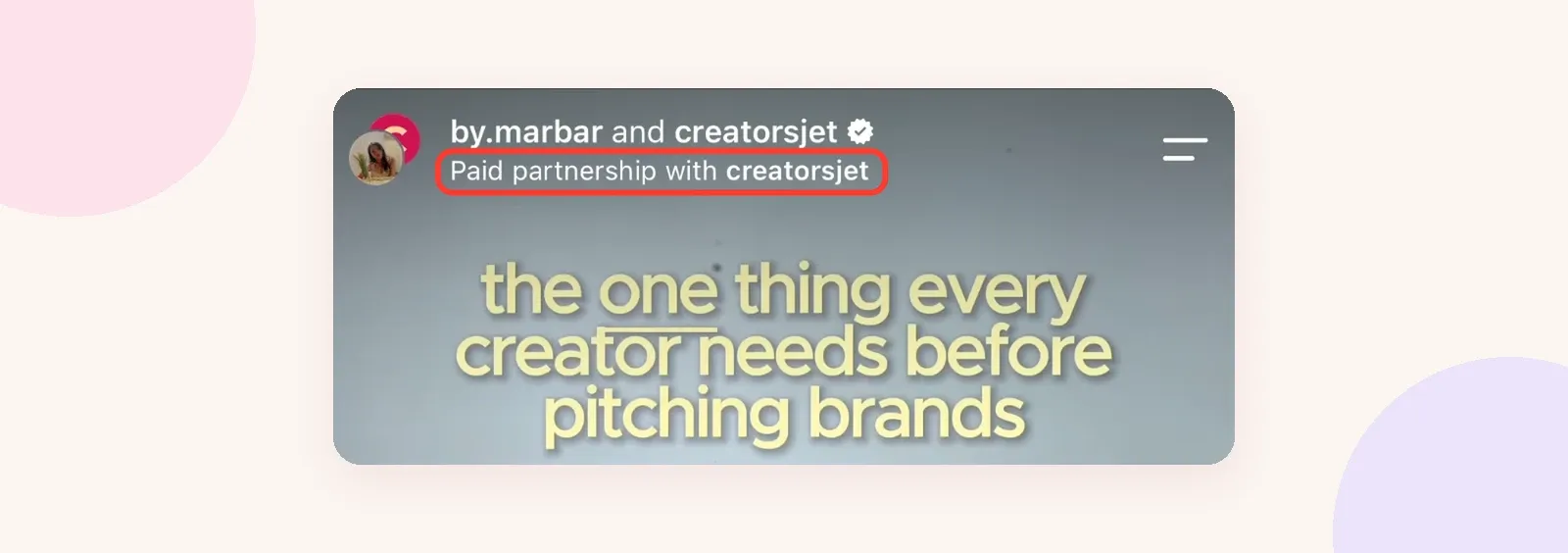
The label reads "Paid partnership with [brand]" under your username. Instagram requires it on branded content, including content you made in exchange for free products, and it gives the brand access to the post's insights.
Before you start: turn on branded content tools
The paid partnership option does not appear in the posting flow until branded content tools are enabled on your account. You need a professional account, Creator or Business, and you need to meet Instagram's branded content eligibility rules. If you are still on a personal account, switch first. A Creator account is the usual choice for an individual creator.
To enable the tools in the Instagram app:
- Go to your profile and tap the Menu icon in the top right.
- Tap Creator tools and controls (or Business tools and controls).
- Open Branded content. On recent app versions, this screen may be titled Brand partnerships, as shown below.
- Tap Set up branded content tools, then Enable.
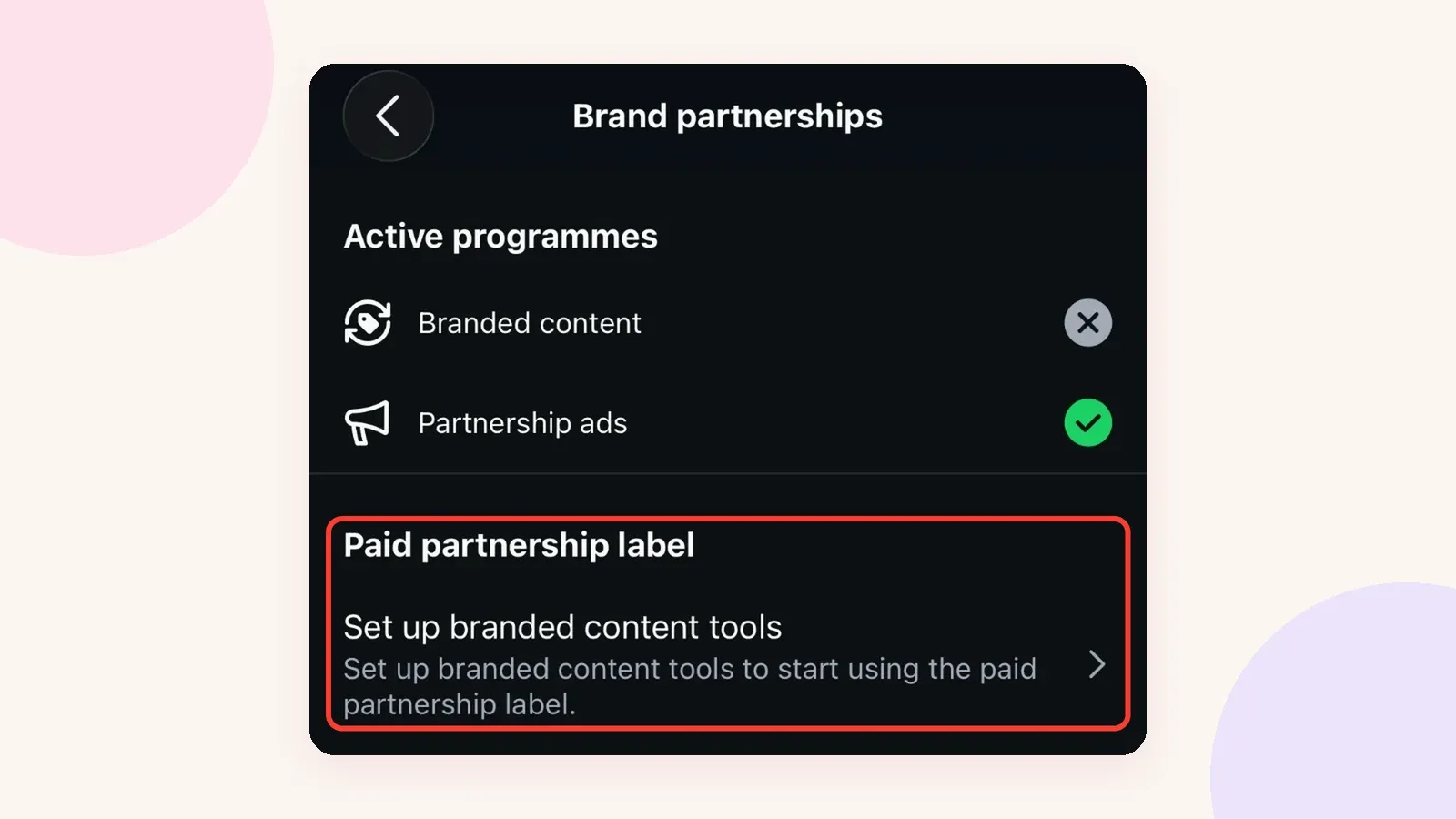
If Instagram says you are not eligible, it offers a review request from the same screen. Instagram lists the requirements on its branded content help page: your account has to follow its Branded Content Policies, Community Standards and Content Monetization Policies. The brand you tag also needs a professional Instagram account, otherwise it will not appear in the search.
How to add paid partnership on Instagram, format by format
The label works on feed posts, Reels, Stories, Lives and broadcast channel messages. The steps below match Instagram's own instructions for the paid partnership label. For posts, Reels and Stories, the label can only be added in the Instagram mobile app.
Feed post
- Select your photo or video, add your caption, effects and filters, then tap Next.
- Tap More options.
- Under Ads and monetization, tap Partnership label & ads.
- Tap Add paid partnership label and turn it on.
- Tap Add brands manually to search for a brand, or Add a brand from a project if the deal came through Instagram's creator marketplace. You can tag up to two brands.
- Decide whether to turn on Allow brand partner to boost (covered below).
- Tap Done, then share the post.
Reel
- Edit your Reel, add the caption, then tap Next.
- Tap More options, then Add paid partnership label, and turn the toggle on.
- Tap Add brands manually or Add a brand from a project, then tap the brand's name. Up to two brands can be added.
- Share the Reel.
Story
- Choose your photo or video for the Story.
- Tap the tag icon at the top of the screen.
- Turn on Add paid partnership label.
- Add up to two brands, set the Allow brand partner to boost toggle, then tap Done and share.
Live
- Before going live, tap Details.
- Tap Add brand partner and search for the brand.
- Tap the brand's name, then start your Live.
Two limits apply to Lives: the brand can only be tagged before the broadcast starts, and only brands that have already approved you can be tagged.
How to add paid partnership on Instagram after posting
If you forgot the label on a sponsored post, you can add it without deleting and reposting:
- Open the published post or Reel.
- Tap the three dots in the top right.
- Choose Partnership label & ads. On some app versions, the option sits inside Edit.
- Tap Add paid partnership label, turn it on, add the brand, then tap Done.
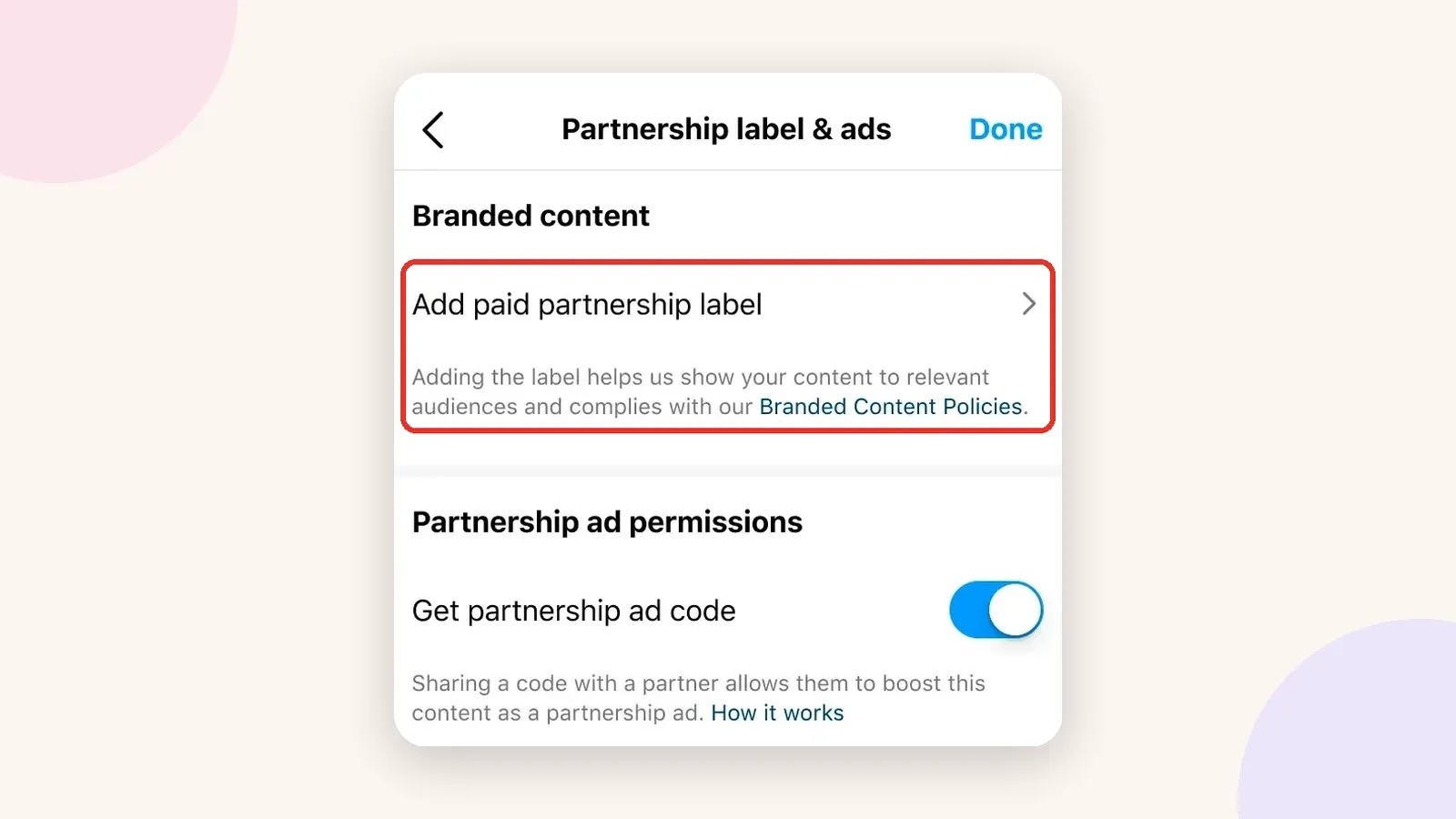
Instagram's note on this screen says the label helps it show your content to relevant audiences and keeps the post compliant with its Branded Content Policies.
The brand receives the same approval request as for a new post. To remove the label or change the brand later, go back to the same menu and turn Add paid partnership label off or edit the brand list. A brand you remove is notified and loses access to that post's insights.
Scheduled posts are a common place for the label to go missing. Instagram's in-app scheduler warns that some features may be unavailable with scheduled content, and creators using third-party schedulers had to add the label by hand in the app after publishing. Meta changed that in April 2026 by adding the paid partnership label to its publishing API, so scheduling tools can now apply it at publish time on photos, Reels, carousels and Stories, once they have added support. If yours has not, check the post as soon as it goes live and add the label from the post menu.
What happens after you tag the brand
The first time you tag a brand, Instagram sends it a request. Until the brand approves, the post shows "Paid partnership" without the brand's name. Once approved, the label reads "Paid partnership with [brand]", and future posts tagging that brand display its name straight away. Brands can also pre-approve creators from their own branded content settings, which avoids the wait on launch day.
If the brand denies the request, Instagram removes the paid partnership label from your content. That usually means the wrong account was tagged, or the brand's social team was not told about the deal. Check the handle, then message your contact before reposting.
Once the post is live, the brand is notified and can see the content's insights. That helps with campaign reporting, since the brand no longer depends only on screenshots you send.
Should you turn on "Allow brand partner to boost"?
This toggle lets the brand run ads using your post. The ad appears with your name and profile photo, while the brand pays for it and controls the targeting. Meta calls this format partnership ads, and it is a post-level version of influencer whitelisting.
Turn it on when your agreement includes paid usage of that post. Leave it off when the deal only covers organic posting, because once the brand can promote the post, your face can run in front of a much larger audience than the one you were paid for. Paid amplification is usually priced on top of the content fee, with a set end date. For rates and contract terms, see this guide to pricing and setting up influencer whitelisting.
Two practical details:
- If you tag two brands on the same post or Story, it cannot be boosted.
- For brands that want to promote a post from Ads Manager, the same Partnership label & ads menu can generate a partnership ad code to share with them. Keep it to the brand named in your agreement.
Paid partnership label vs Collab post
Brands sometimes ask for a Collab post and assume it covers disclosure. It does not. The two features do different jobs:
| What it does | Paid partnership label | Collab post |
|---|---|---|
| Main purpose | Discloses a commercial relationship | Co-authors one post across profiles |
| Where it appears | Feed posts, Reels, Stories, Lives | Feed posts and Reels only |
| Number of partners | Up to two brands | Up to five collaborators |
| Shown on the partner's profile | No, only on yours | Yes, once they accept |
| Tells viewers it was paid | Yes, under your username | No, it only lists the authors |
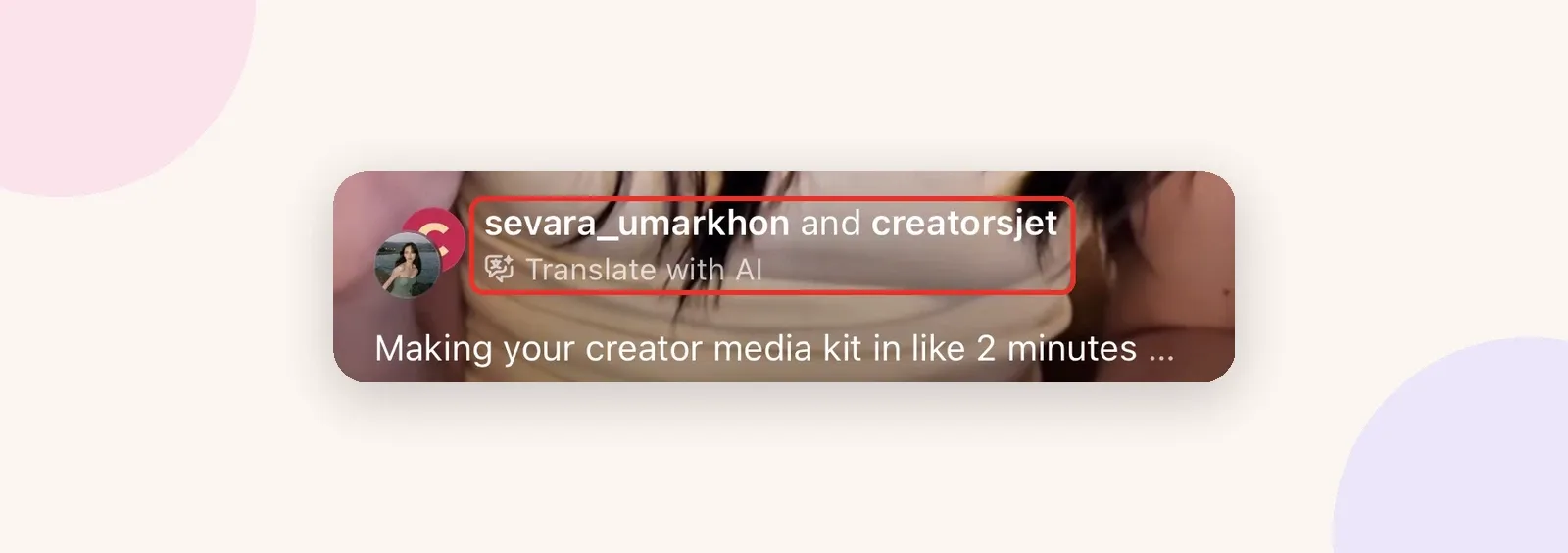
The two can be combined. A sponsored Reel can be a Collab with the brand and carry the paid partnership label, like the Reel shown earlier: both usernames in the header, with the disclosure line underneath. A Collab on its own, like the one below, tells viewers who made the post but not that it was paid.
Is the paid partnership label enough for the FTC?
Probably not on its own. Instagram's policy requires the label on branded content, but US disclosure rules come from the Federal Trade Commission, and its disclosure guide for social media influencers is direct: "Don't assume that a platform's disclosure tool is good enough." The FTC suggests using the platform tool in addition to your own clear disclosure.
In practice, for US audiences:
- Disclose any material connection. Payment counts, and so do free or discounted products. Instagram's definition of branded content also covers gifted products.
- Put the disclosure where people see it. Write "Ad" or "Sponsored" at the start of the caption, before the "more" cut, not buried in a block of hashtags at the end.
- Add it on the content itself for Stories and Reels. The FTC recommends superimposing the disclosure on the image or video, because many viewers never read the caption.
- Repeat it during Lives. People join a Live at different times, so the disclosure should come back periodically.
- Use plain words. "Ad", "Sponsored" or "Thanks to [brand] for the free product" are clear. "Sp", "spon", "collab" or "ambassador" alone are not.
Brand contracts often set the exact disclosure wording as well. This guide to the disclosure clause in influencer contracts shows what to accept and what to push back on before signing.
Why the paid partnership option is missing
If Partnership label & ads does not appear under Ads and monetization, the cause is almost always one of these:
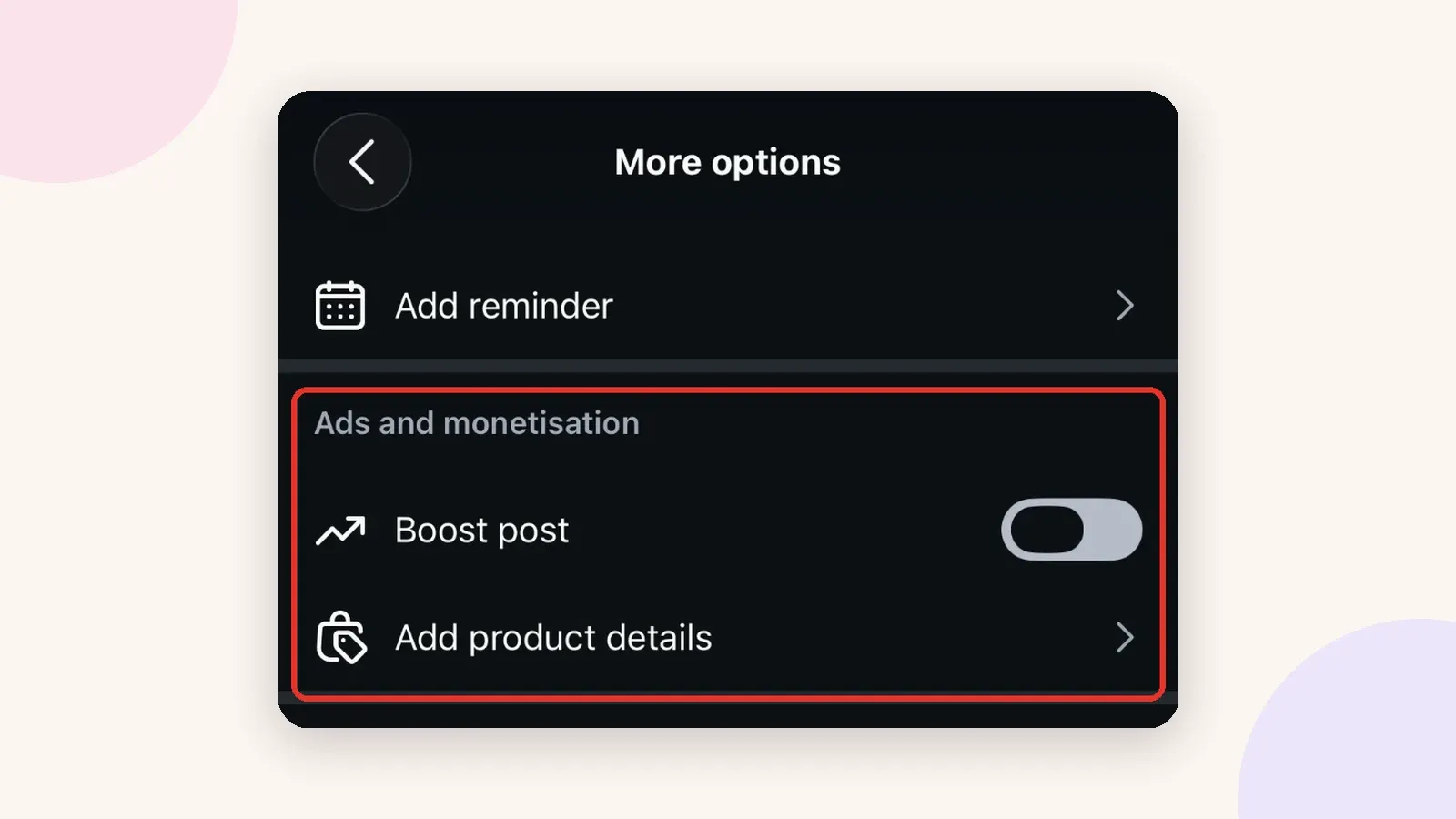
- Branded content tools are off. This is the most common reason. Without them, More options only shows items like Boost post and Add product details, as above. Enable the tools from Creator tools and controls.
- You are on a personal account. Switch to a Creator or Business account first.
- Your account is not eligible. Policy violations or restrictions on the account can block branded content tools. Use the review request on the branded content screen.
- You are posting from a computer. For posts, Reels and Stories, the label is only available in the Instagram mobile app.
- The brand does not show up in search. It may not have a professional account, or you may be searching the wrong handle. Ask your contact for the exact username.
- You cannot tag the brand in a Live. Lives only accept brands that have already approved you. Publish a labeled feed post or Story with that brand first, or ask the brand to approve you in its settings.
- Your app is out of date. Menu names change between versions, so update the app before troubleshooting further.
Conclusion
Adding the paid partnership label takes a few taps once branded content tools are on: More options for posts and Reels, the tag icon for Stories, Details for Lives, and the post menu if you forgot. The decisions around it matter more than the steps. Get the brand to approve you before launch day, leave Allow brand partner to boost off unless paid usage is in the agreement, and pair the label with a plain "Ad" in the caption or on screen so US viewers cannot miss it.